让 Codex 在 Windows 上默认使用 PowerShell 7
解决中文路径、引号解析、语法兼容等问题,提高 Codex 本地任务成功率。
前言
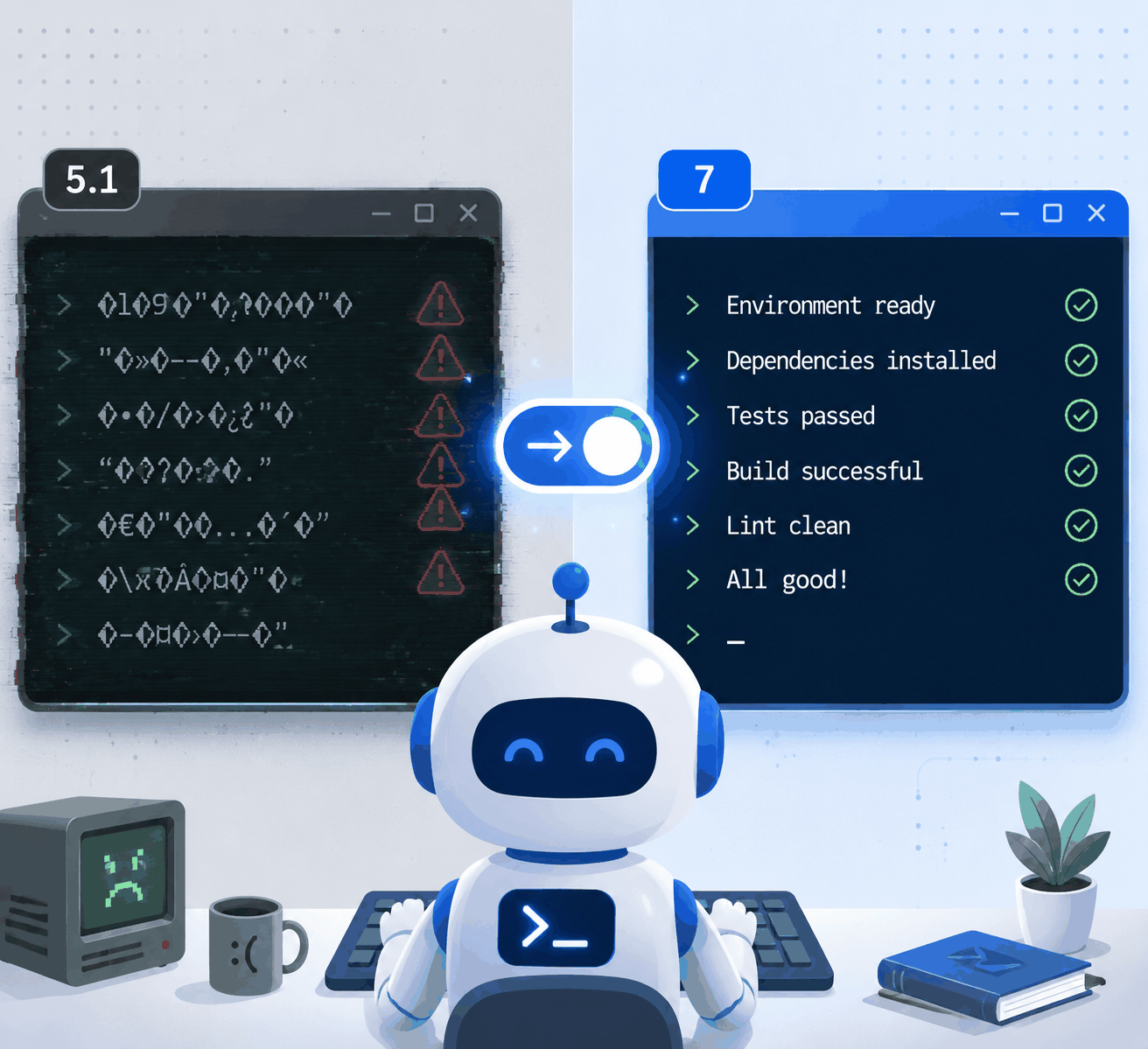
在 Windows 上用 Codex 做本地开发时,如果你经常遇到:
- 中文路径或中文输出乱码/异常
- 命令里带引号、JSON、正则时解析失败
- 明明 PowerShell 7 支持的写法,Codex 执行时却报错
- 同样命令手动跑正常,Codex 调用就不稳定
那么大概率是因为 Codex 默认启动的是 Windows 自带的 PowerShell 5.1,而不是 PowerShell 7。
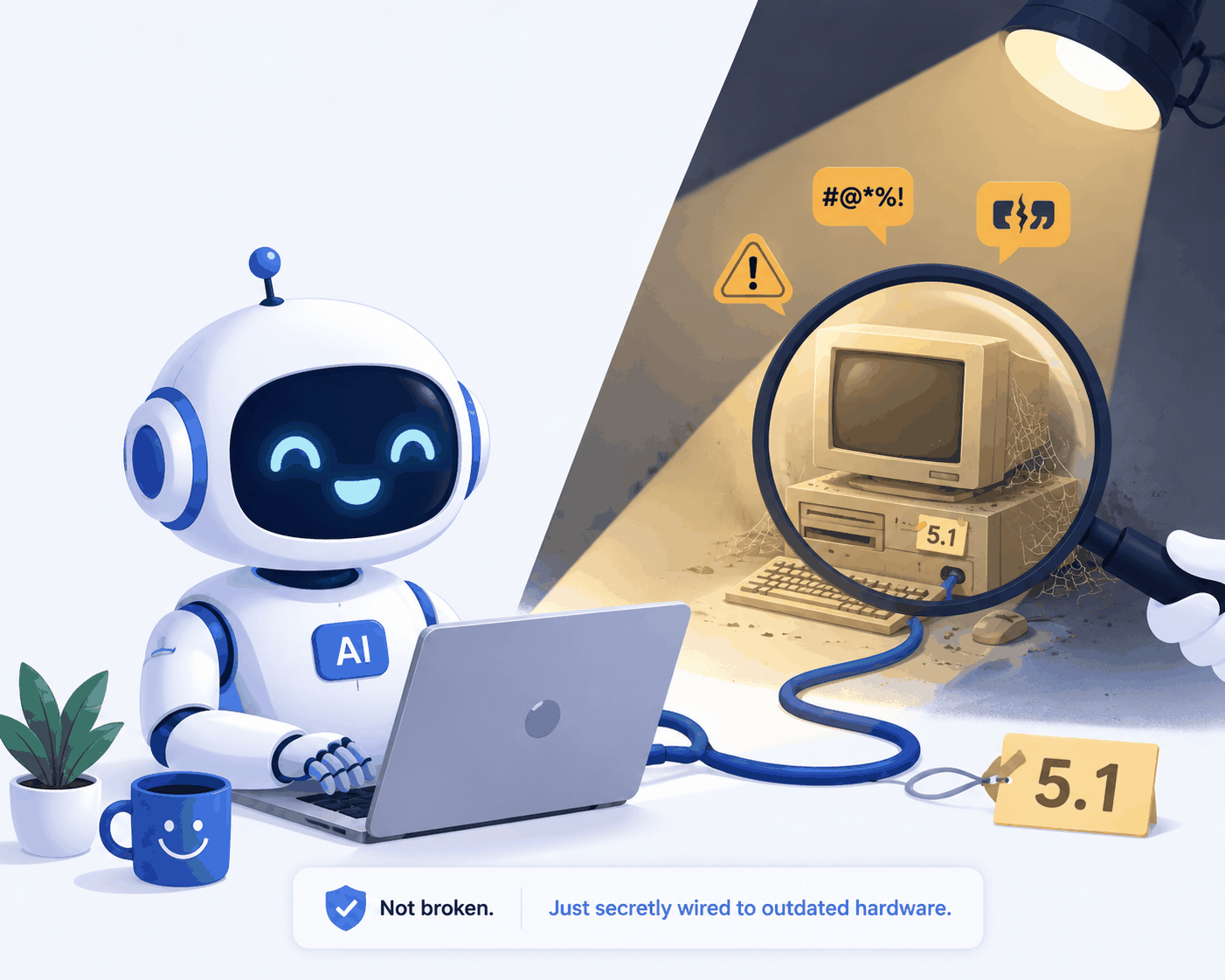
你可以在 Codex 里执行下面命令确认当前 shell 版本:
如果输出类似:
就说明需要手动切换到 PowerShell 7。
步骤一:安装 PowerShell 7(MSI 版)
推荐使用 MSI 版本,路径稳定,也更容易控制环境变量。
方式 A:用 WinGet 安装 MSI 版(需要代理打开TUN模式)
实测 WinGet 安装的 MSI 版默认会勾选“Add PowerShell to PATH”,但加进去的位置通常在 PowerShell 5.1 下面,所以后面还需要手动置顶。
方式 B:手动下载 MSI 安装包
如果 WinGet 不方便,也可以去微软官方文档下载 MSI 包:
https://learn.microsoft.com/zh-cn/powershell/scripting/install/install-powershell-on-windows?view=powershell-7.6#msi
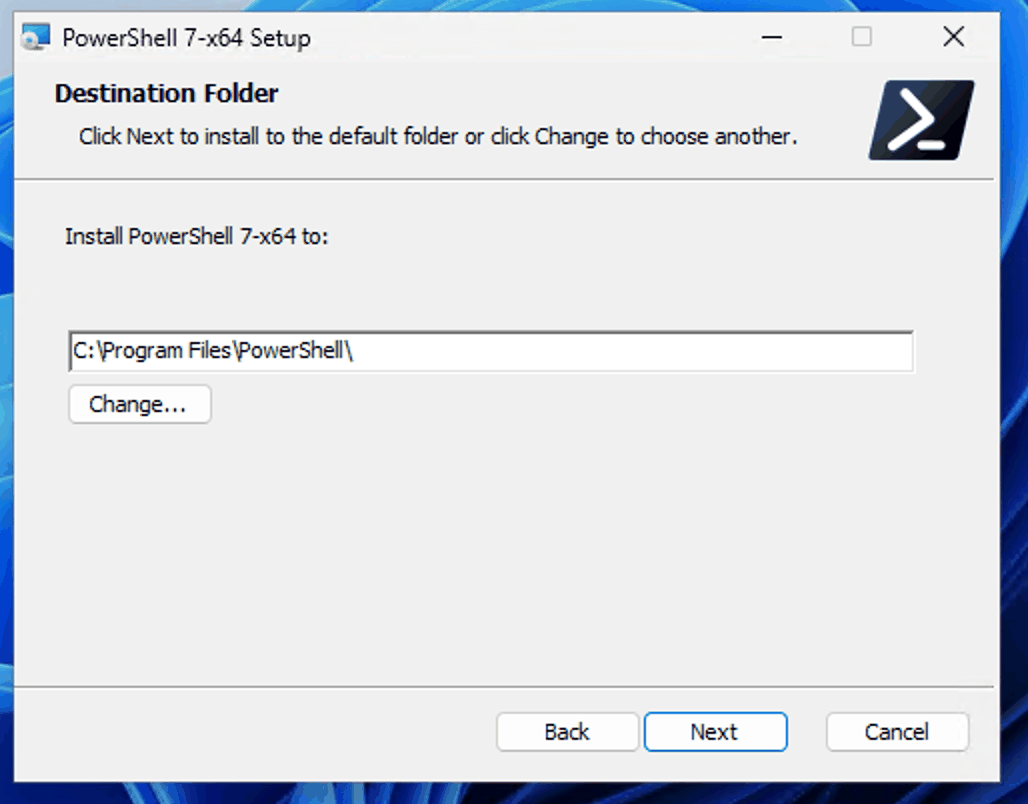
步骤二:安装时保持默认路径并勾选 Add PowerShell to PATH
安装向导中,默认路径通常是:
下一步的 Optional Actions 中,确保勾选:
Add PowerShell to Path Environment Variable
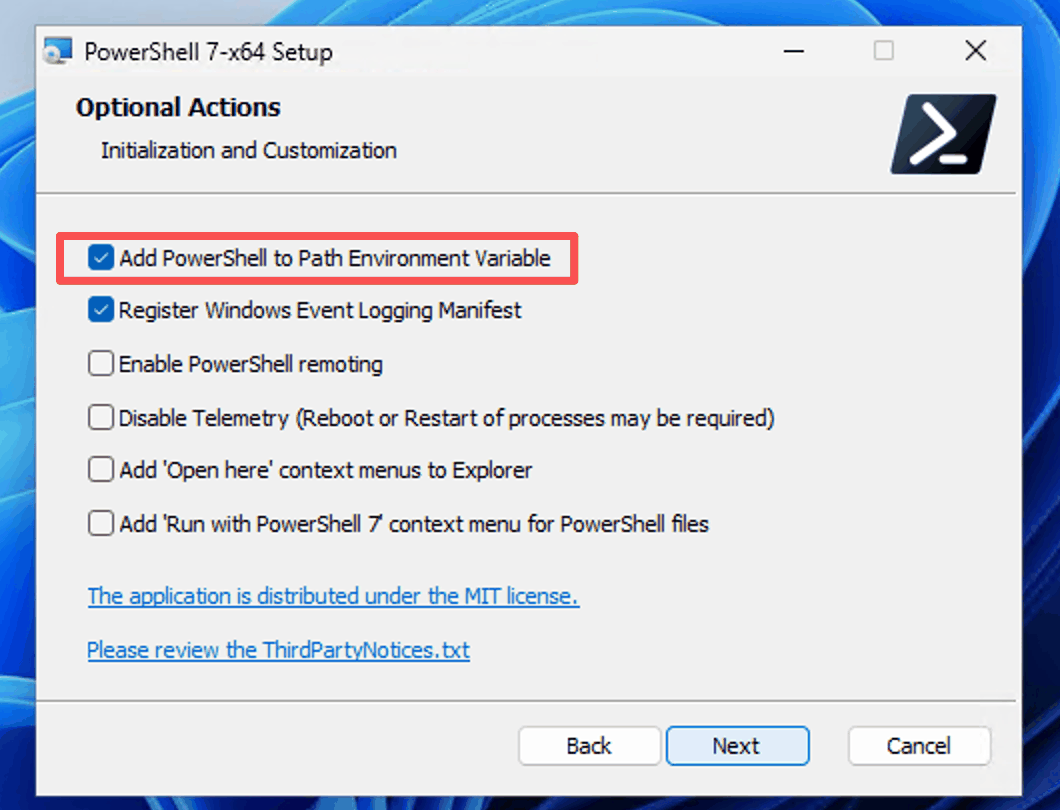
这一步会把 C:\Program Files\PowerShell\7\ 加入系统 Path,但如前面所说,它往往排在 PowerShell 5.1 的下面,所以还需要下一步手动调整顺序。
步骤三:把 PowerShell 7 路径置顶
为什么必须置顶?
Windows PowerShell 5.1 的系统路径是:
如果 C:\Program Files\PowerShell\7\ 排在它下面,Codex 仍然可能优先找到 powershell.exe,继续调用 5.1。
操作方法
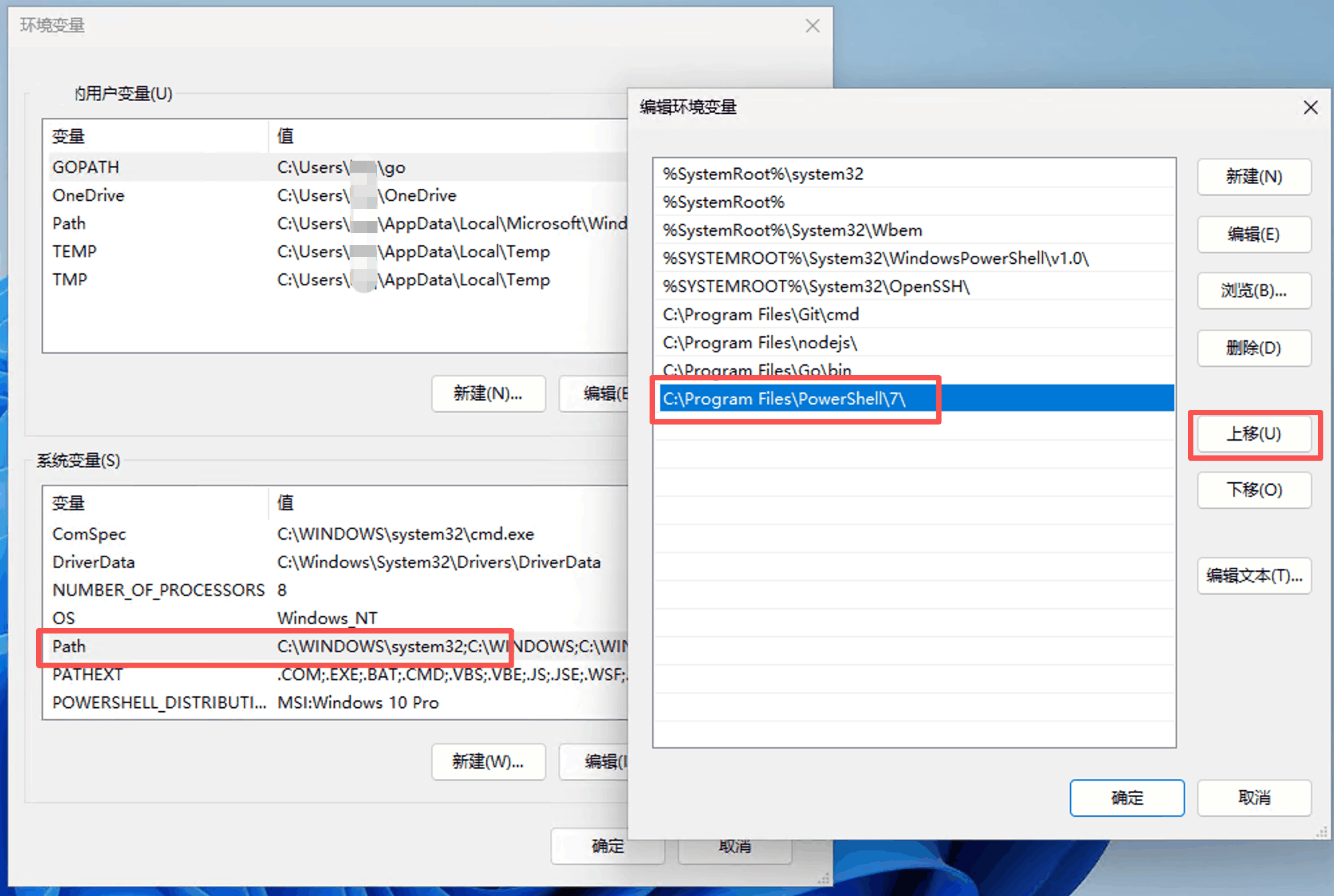
打开系统环境变量编辑界面:
找到 C:\Program Files\PowerShell\7\,选中后点击上移,把它排到 WindowsPowerShell\v1.0\ 的上面。
调整完成后,顺序应该是:
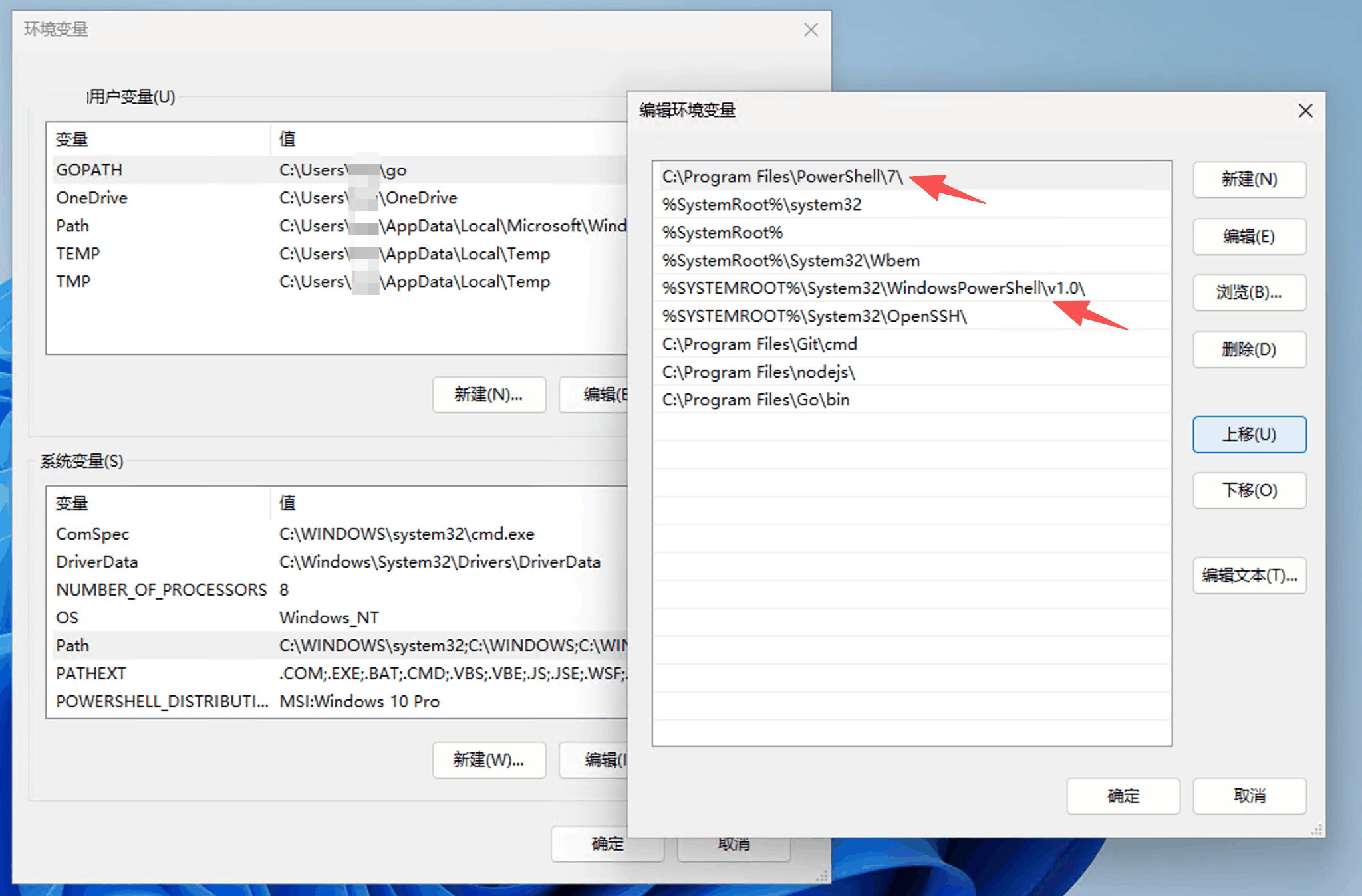
点击确定保存。
步骤四:重启 Codex
修改系统 Path 后,已经运行的 Codex 进程不会自动刷新环境变量,必须完整退出并重新打开 Codex。
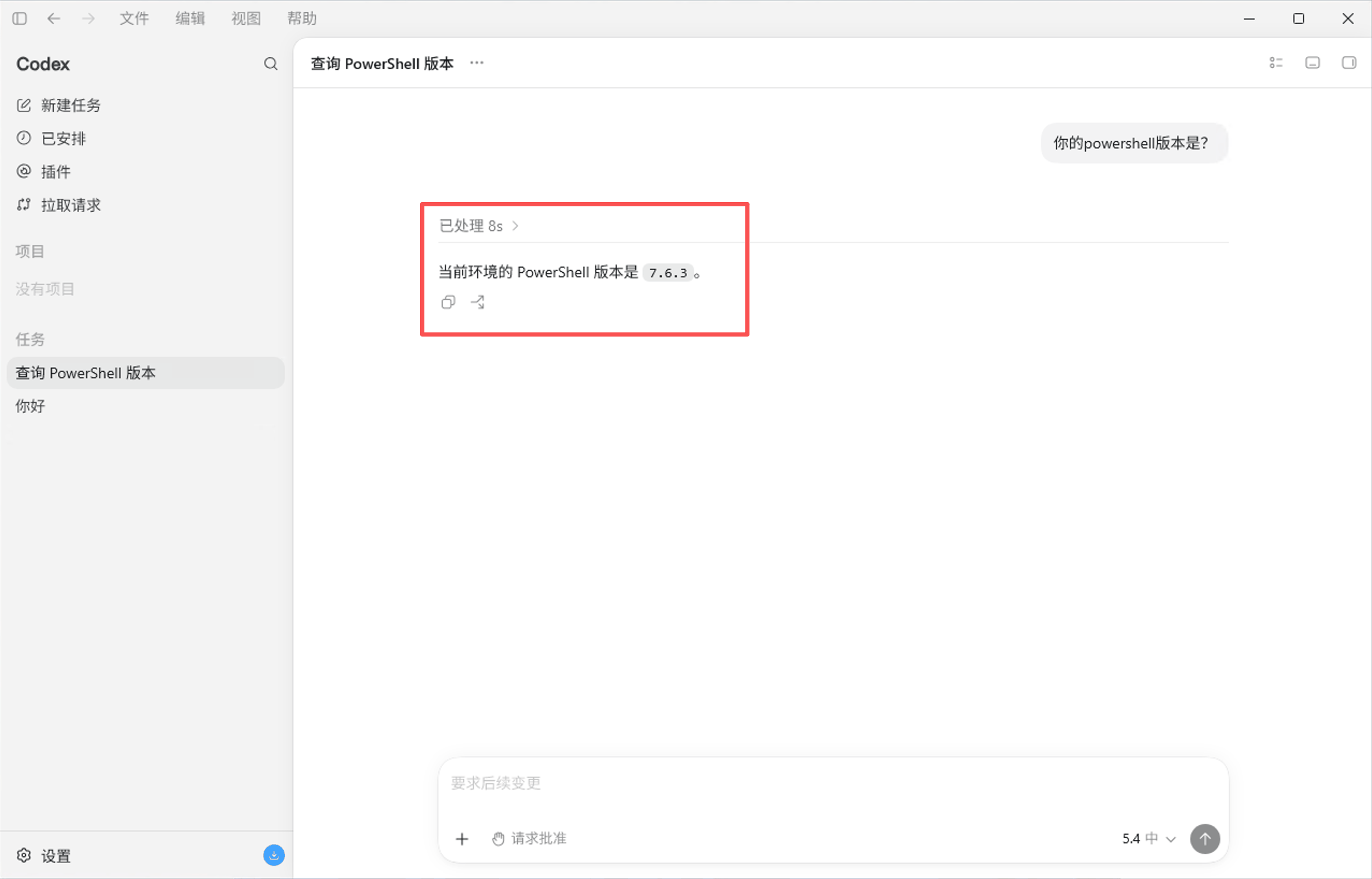
重启后可以直接问 Codex:
如果看到 7.x,说明已经切换成功。
更完整的验证命令
注意:以下命令需要在 Codex 的输入框里执行,而不是在 Windows 自带的终端或 VS Code 终端里执行。
外部终端(如 Windows Terminal)的默认配置可能还是 Windows PowerShell 5.1,那是终端自己的默认配置文件,和 Codex 无关。
如果想确认 Codex 当前进程确实是 pwsh,可以执行:
期望看到:
再执行:
正常情况下会显示:
这说明:
pwsh可以调用 PowerShell 7powershell仍是系统自带的 5.1- Codex 当前默认 shell 已经进入了 PowerShell 7
为什么不建议用 shell_path 配置
Codex 的配置文件一般在:
有人尝试写:
但实测这个配置不能让本地命令通道稳定切到 PowerShell 7。而且 OpenAI 官方 Codex 配置参考里也没有把 shell_path 列为公开配置项。
所以最可靠的方式还是:
- 安装 PowerShell 7
- 把
pwsh.exe所在目录加入系统 Path,并排在 PowerShell 5 之上 - 重启 Codex
- 用命令确认当前进程是
pwsh
常见问题
1. 已经加了 Path,Codex 为什么还是找不到 pwsh?
最常见原因:Codex 没重启。
可以先检查系统 Path:
再检查当前进程 Path:
如果系统 Path 有 PowerShell 7,但当前进程 Path 没有,重启 Codex 即可。
2. 改 PSModulePath 有用吗?
没用。启动 pwsh.exe 看的是 Path,不是 PSModulePath。
PSModulePath 是用来搜索 PowerShell 模块的,比如 Import-Module,它不会决定启动 PowerShell 5 还是 7。
3. 切换后还会遇到中文或引号问题吗?
会明显减少,但不能保证 100% 消失。
PowerShell 7 对 UTF-8、现代命令行行为、跨平台兼容性更好,中文输出和脚本兼容性会稳定很多。
但复杂命令仍可能经过多层解析:
下面这些场景仍要注意:
- JSON 参数
- 正则表达式
- 中文路径
- 多层嵌套引号
node -epython -ccmd /cbash -lc
遇到复杂命令时,建议使用脚本文件、参数数组或 here-string,减少一行命令里的引号嵌套。
最终效果
配置完成后,Codex 执行本地 shell 命令时,默认环境会变成:
这能明显降低 Windows PowerShell 5.1 带来的编码、中文路径、引号解析和语法兼容问题,Codex 的任务成功率和 token 利用率都会高很多。
参考资料
- Microsoft PowerShell 7 Windows 安装文档:https://learn.microsoft.com/en-us/powershell/scripting/install/install-powershell-on-windows
- PowerShell 环境变量说明:https://learn.microsoft.com/en-us/powershell/module/microsoft.powershell.core/about/about_environment_provider
- PSModulePath 说明:https://learn.microsoft.com/en-us/powershell/module/microsoft.powershell.core/about/about_psmodulepath
- Codex 配置基础:https://developers.openai.com/codex/config-basic
- Codex 配置参考:https://developers.openai.com/codex/config-reference